
How do you get a perfect white background without clipping the product?
Learn how to get the perfect white background without clipping for your products. This method is facilitated by the Orbitvu Station software and mandatory for perfect videos of your products.
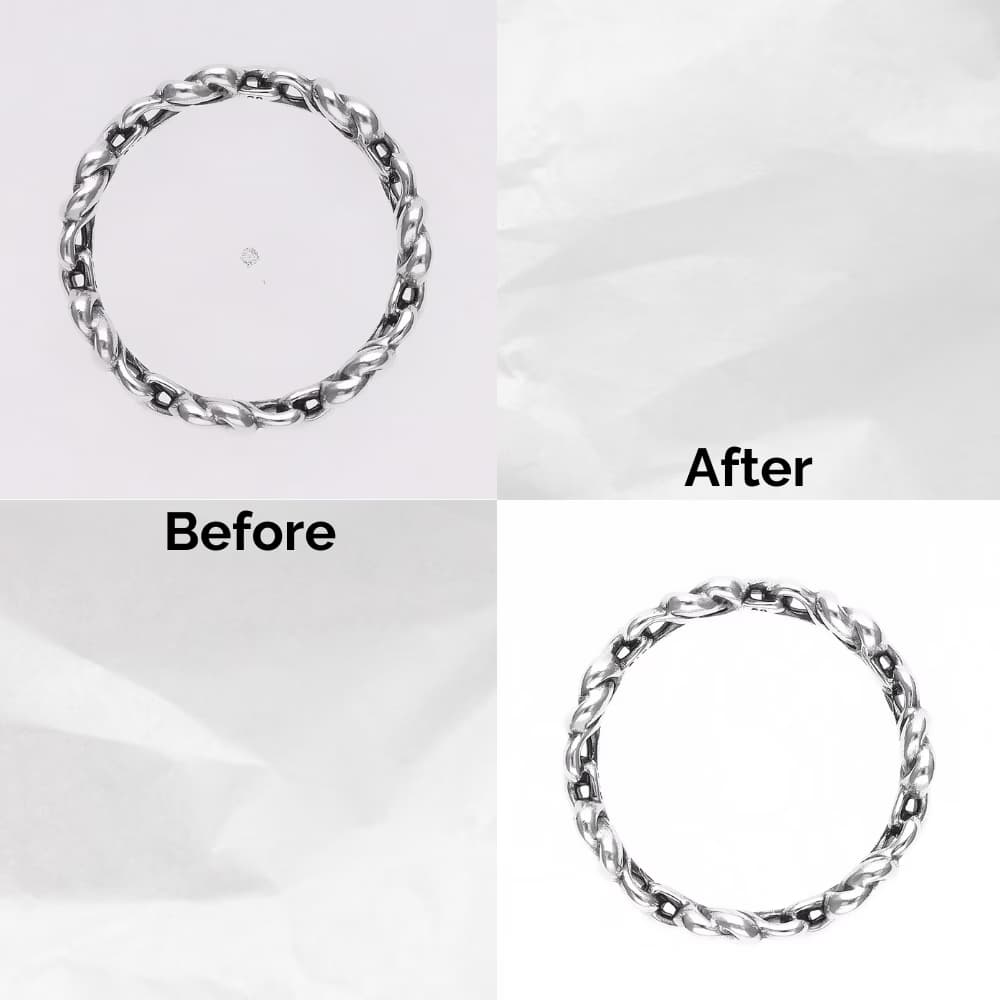
Whether for e-commerce or advertising, an impeccable white background is essential for professional product visuals. It guarantees a homogeneous and neat image, while avoiding long and expensive retouching. 🎨
Although the Orbitvu automated photo studios allow you to automatically crop your photos with theIQ Mask, this function is not available for video. Through this guide, discover our simple and effective method for obtaining a perfect white background without clipping.
Position the product and choose the right lighting
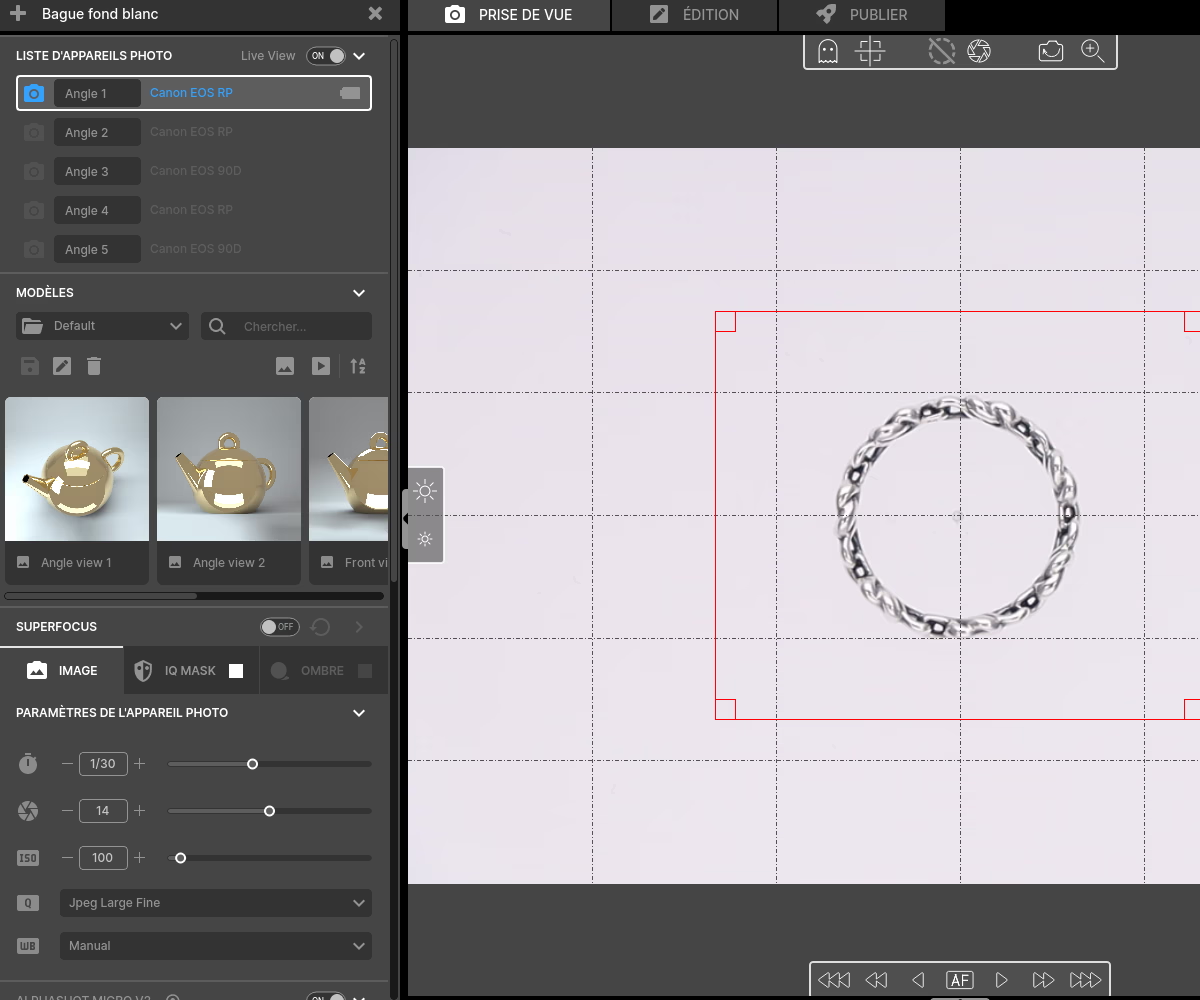
Start by placing your product in the center of the photo studio, using the center guide on the turntable. 📍 Make sure the object is centered on your screen.
On the lighting side, select a predefined template to help and inspire you. 💡
tip : If you're shooting reflective objects, adjust the angle of the light sources slightly to avoid annoying reflections.
Adjust light and camera settings
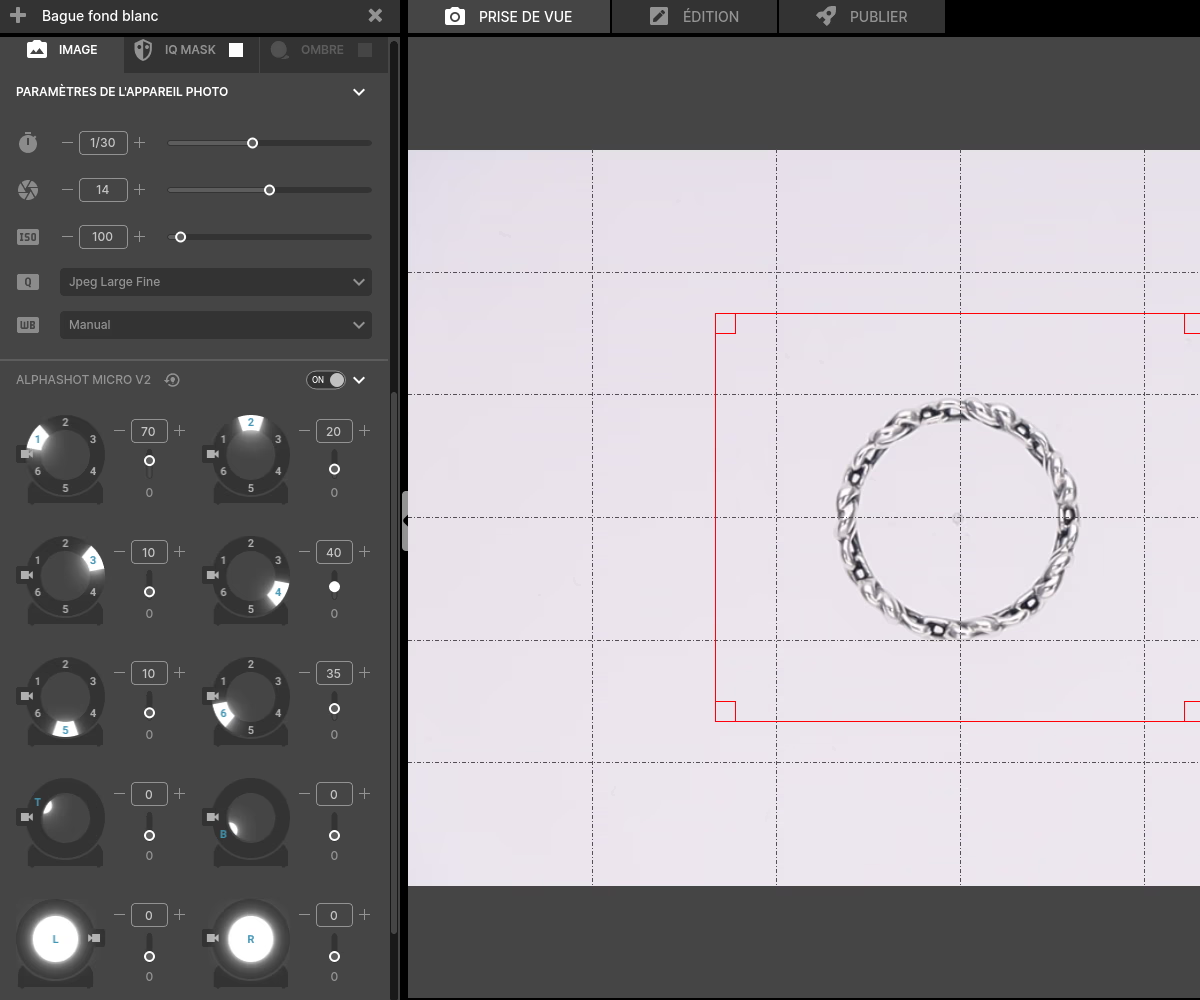
Adjust light intensities to avoid overexposure or reflections. On the camera side, apply these settings: 📷
- Opening : f/14 or f/16 (for a good depth of field)
- ISO : Around 600 (to minimize noise)
- Shutter speed : 1/80
Remember to save your settings to ensure consistency across all your shots and save time. 📂
Start shooting
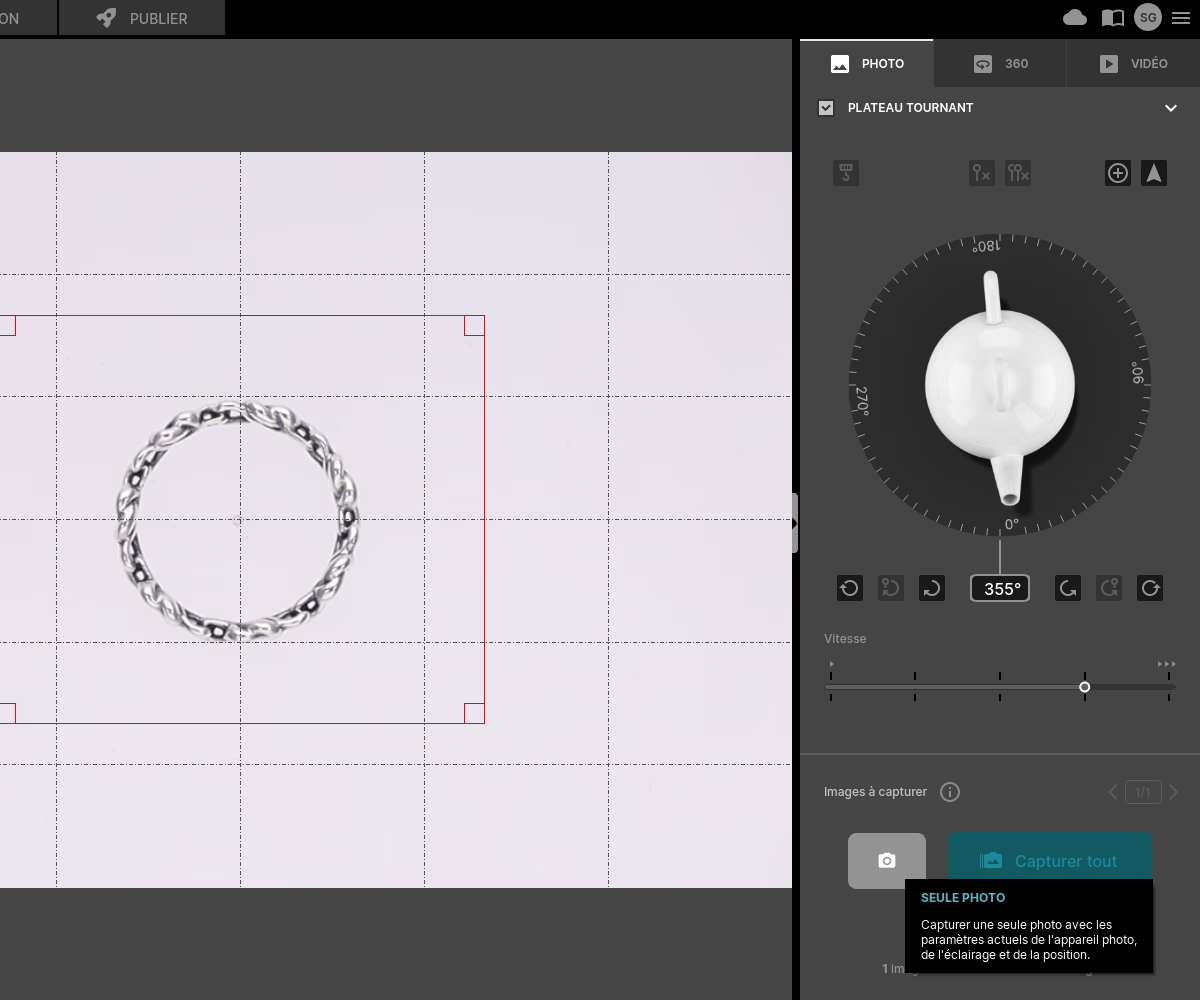
Before shooting, take a photo by yourself to make sure your settings are optimal.
When everything is ready, click “Capture All” or “Save” for a video. 🎬
Adjust the histogram
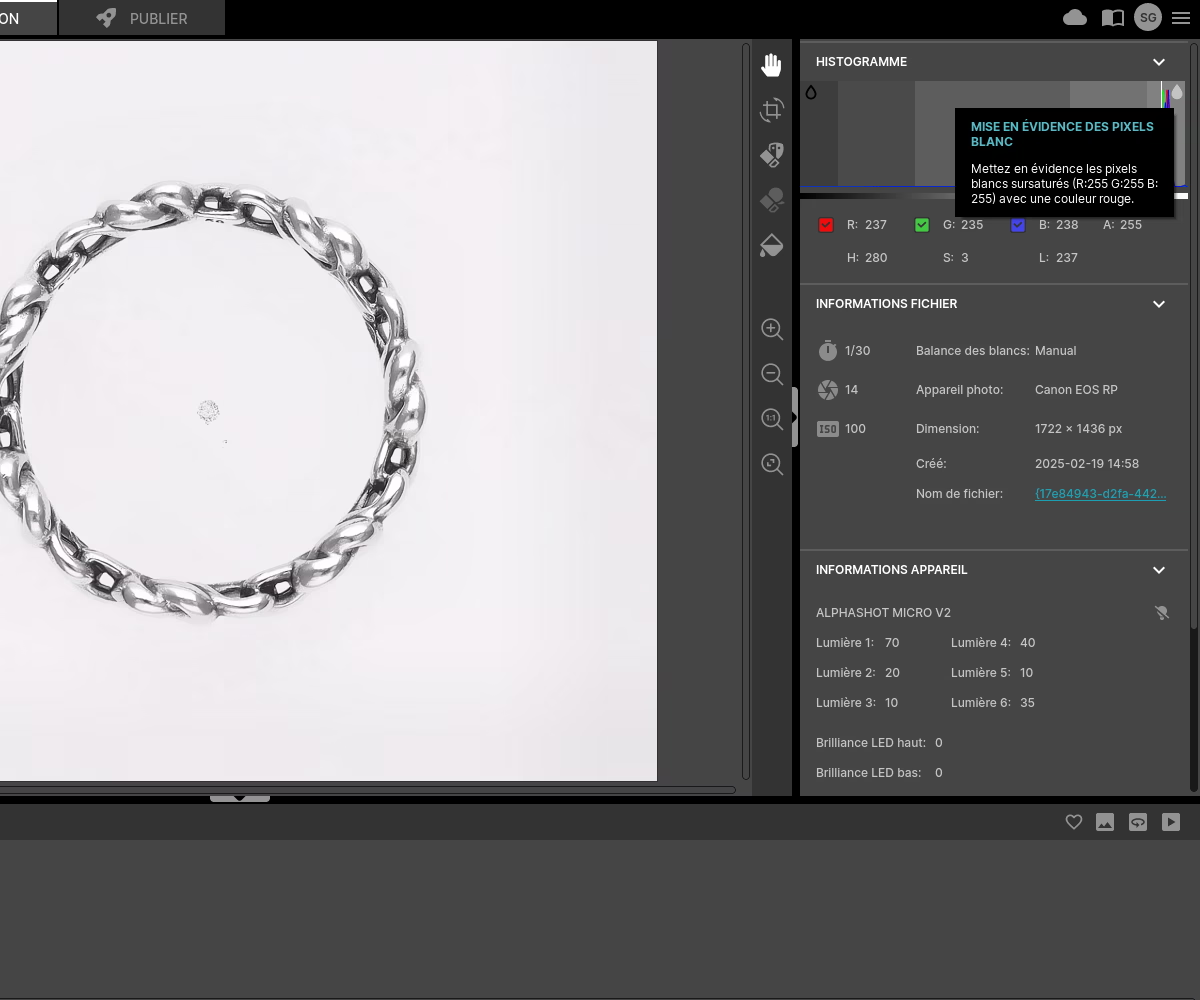
Switch to edit mode in Orbitvu Station. The first step is to adjust the histogram to refine the exposure. 🎨
Click on theDrop icon at the top right of the tool histogram to access level settings.
Perfect the white background
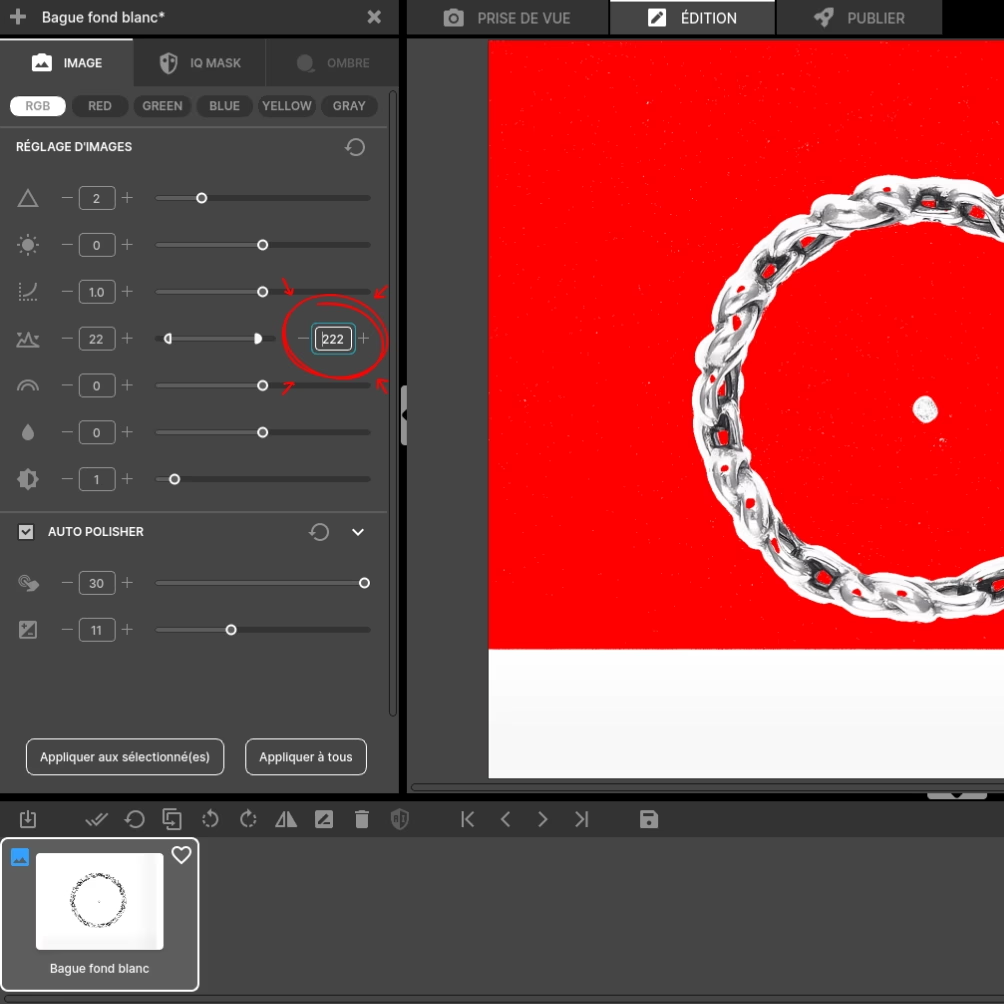
To get pure white, uselevel tool. Lower level 250 gradually until the bottom becomes Entirely red, anything that is red will turn white once validated.
Click on the drop again to see the final result. This technique guarantees a uniform white background without clipping and without tedious retouching.
Export and publish your photos
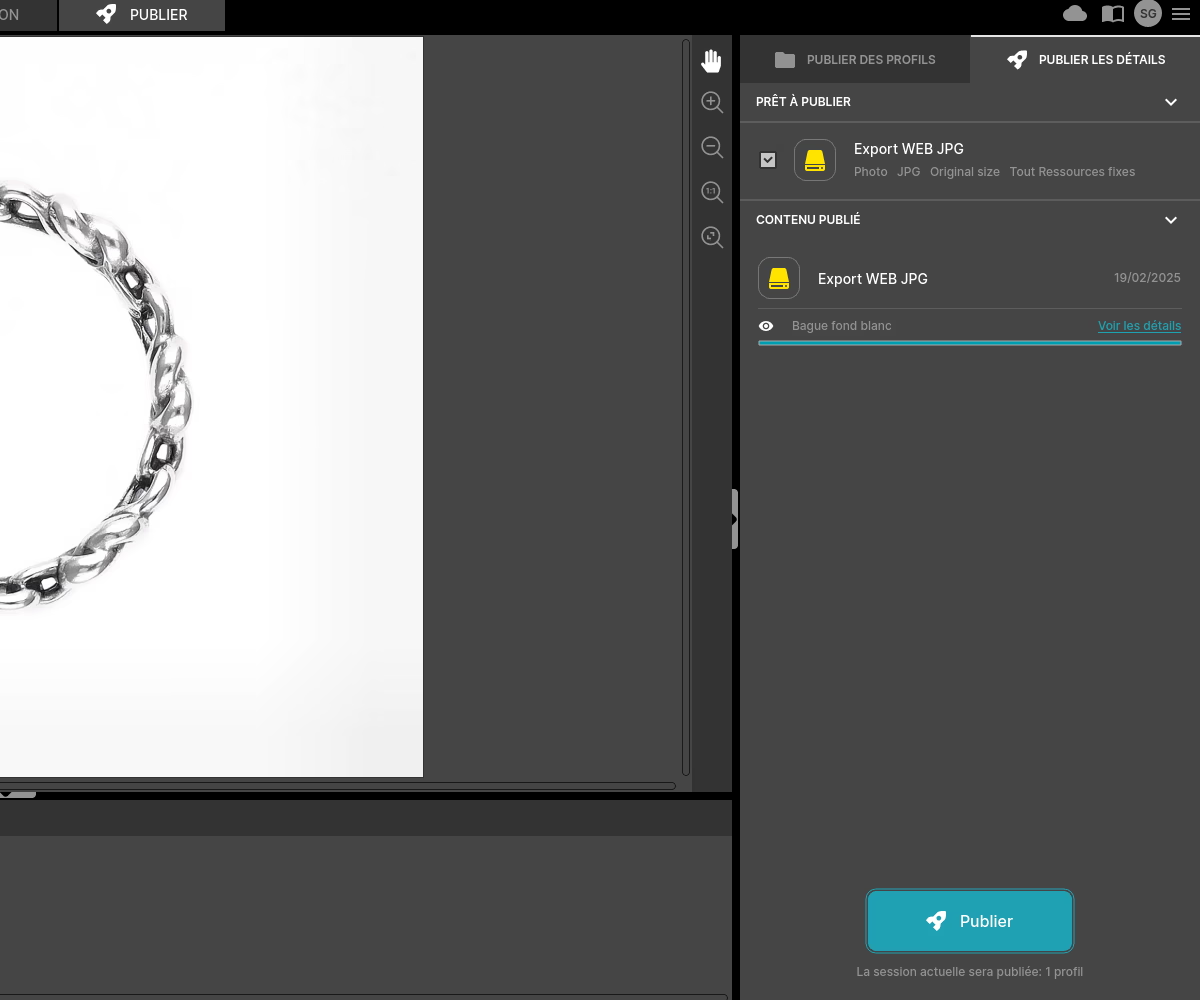
Once the rendering has been validated, export your images in the format that best suits your needs: JPEG for maximum compatibility, PNG if you need a transparent background, MP4 for a video... 📤
Also, find out how to get consistent visuals for an entire collection of products.
Frequently asked questions
Is this method suitable for a large volume of products?
Does this method reduce the cost of creating visuals?
What accessories can help improve the quality of the white background?
What is the difference between a white background obtained by this method and a white background generated in post-production?
How can I prevent the product from appearing too detached from the white background?
Need personalized guidance?
Our PackshotCreator experts are available to help optimize your product photography workflow.
Contact us