
360° video of an artistic object
Learn how to make professional videos of your works or decorative objects with the Alphashot PRO G2, an automated photo studio optimized by AI. Discover tips for perfect lighting, precise adjustments, and 360° videos
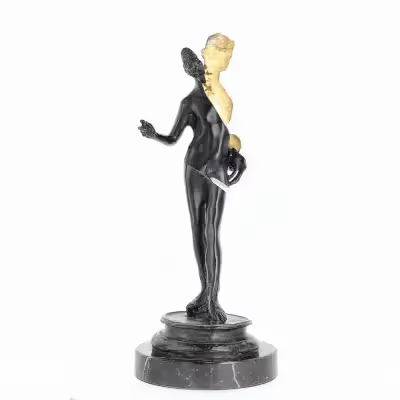
Whether you are an e-merchant, museum or marketing manager, a well-orchestrated video can transform the perception of your works or decorative objects. ⚱️
In this guide, you'll find out how to make a professional video with the Alphashot PRO G2, an AI-powered automated photo studio that facilitates the creation of high quality visual content.
Learn how to program multi-angle shots for your objects with Orbitvu.
Position your statuette
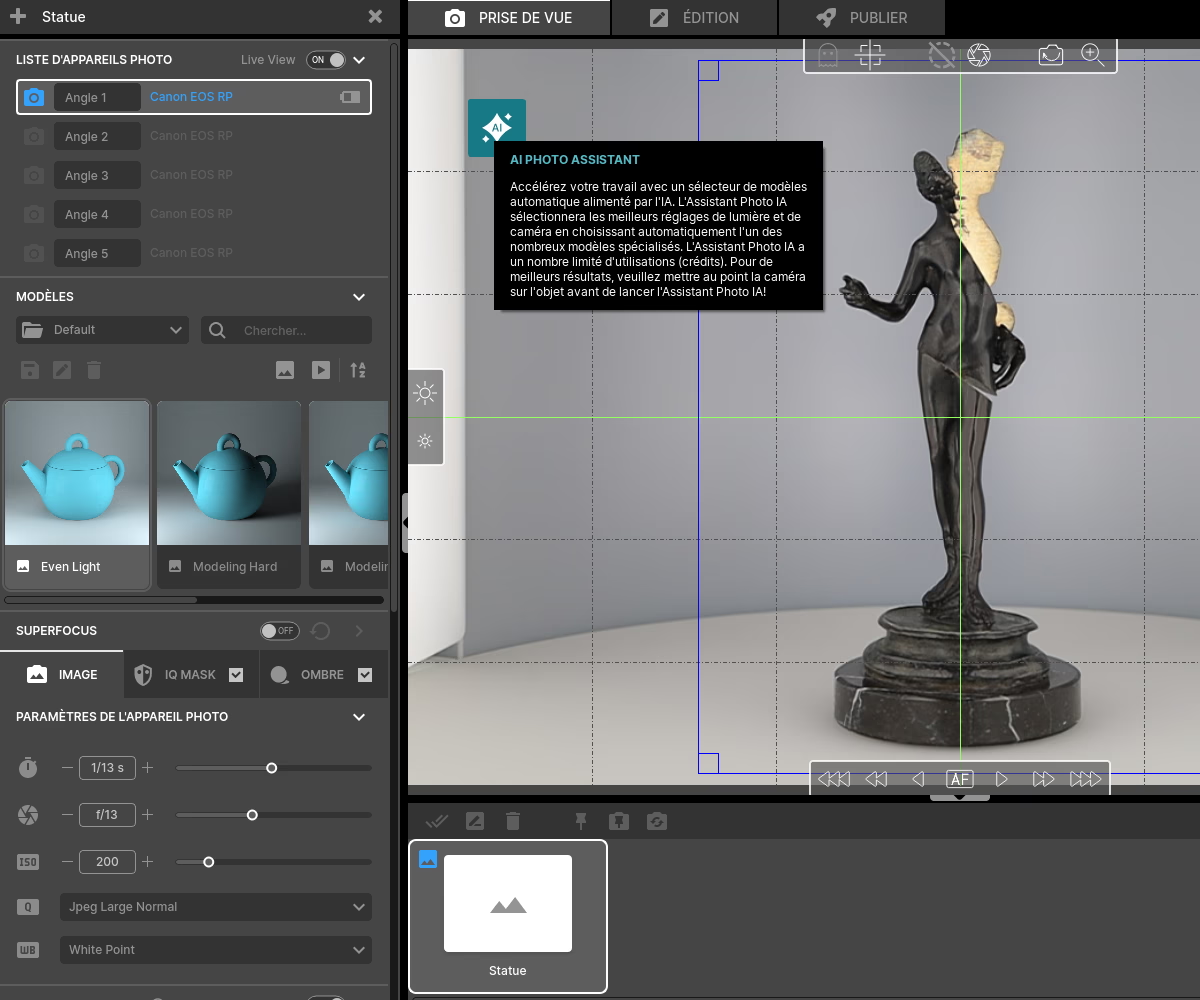
Installing the object is the first step to a successful video. Use the laser to place your statue right in the center of the studio turntable. 📍
If the object is fragile or may move during rotation, use adhesive tape or double-sided invisible tape.
Choose a bright AI template
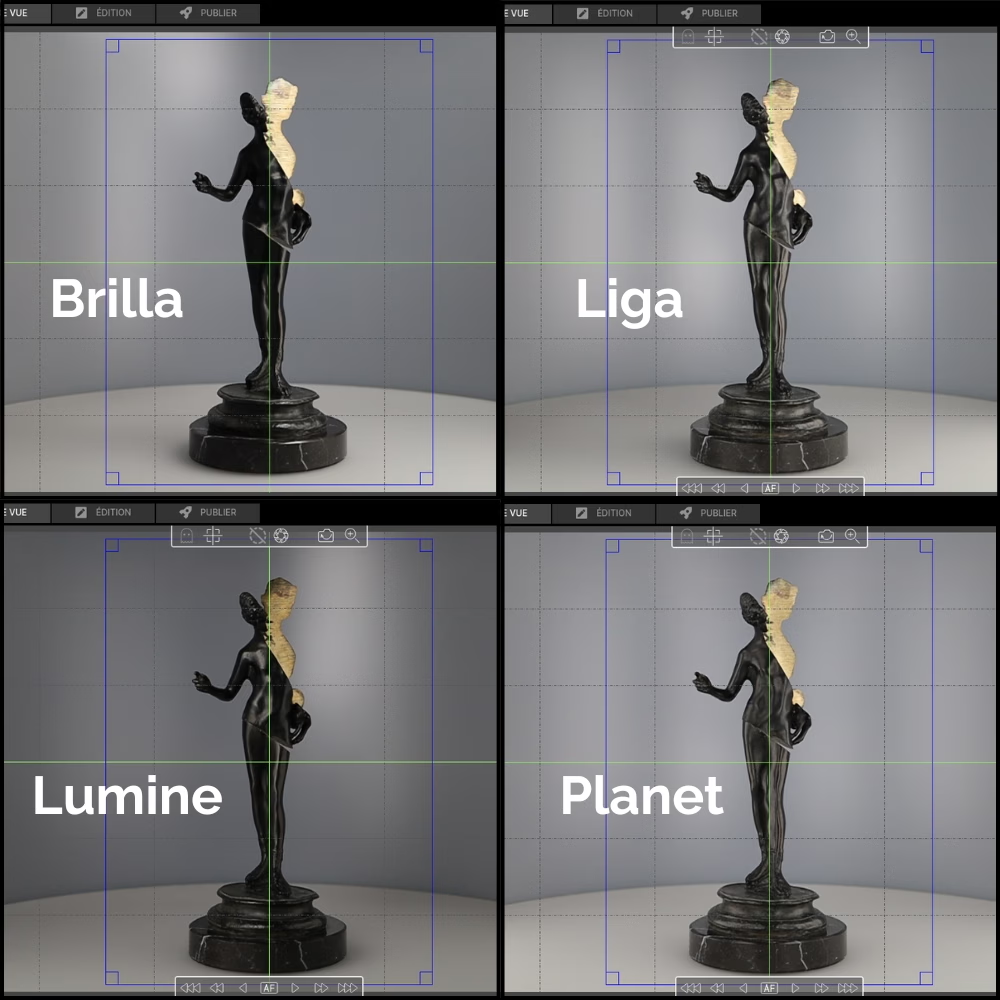
The Alphashot PRO G2 is equipped with 74 light sources and a AI Assistant which automatically suggests optimal light configurations. 💡
Click on the “AI” icon and let artificial intelligence analyze its characteristics (dimensions, reflectivity, etc.). The assistant will offer you 4 lighting options.
Opt for a uniform look if the object is matte or textured, and reduce the intensity to avoid excessive reflections on shiny surfaces. ✨
Fine-tune the light and camera settings
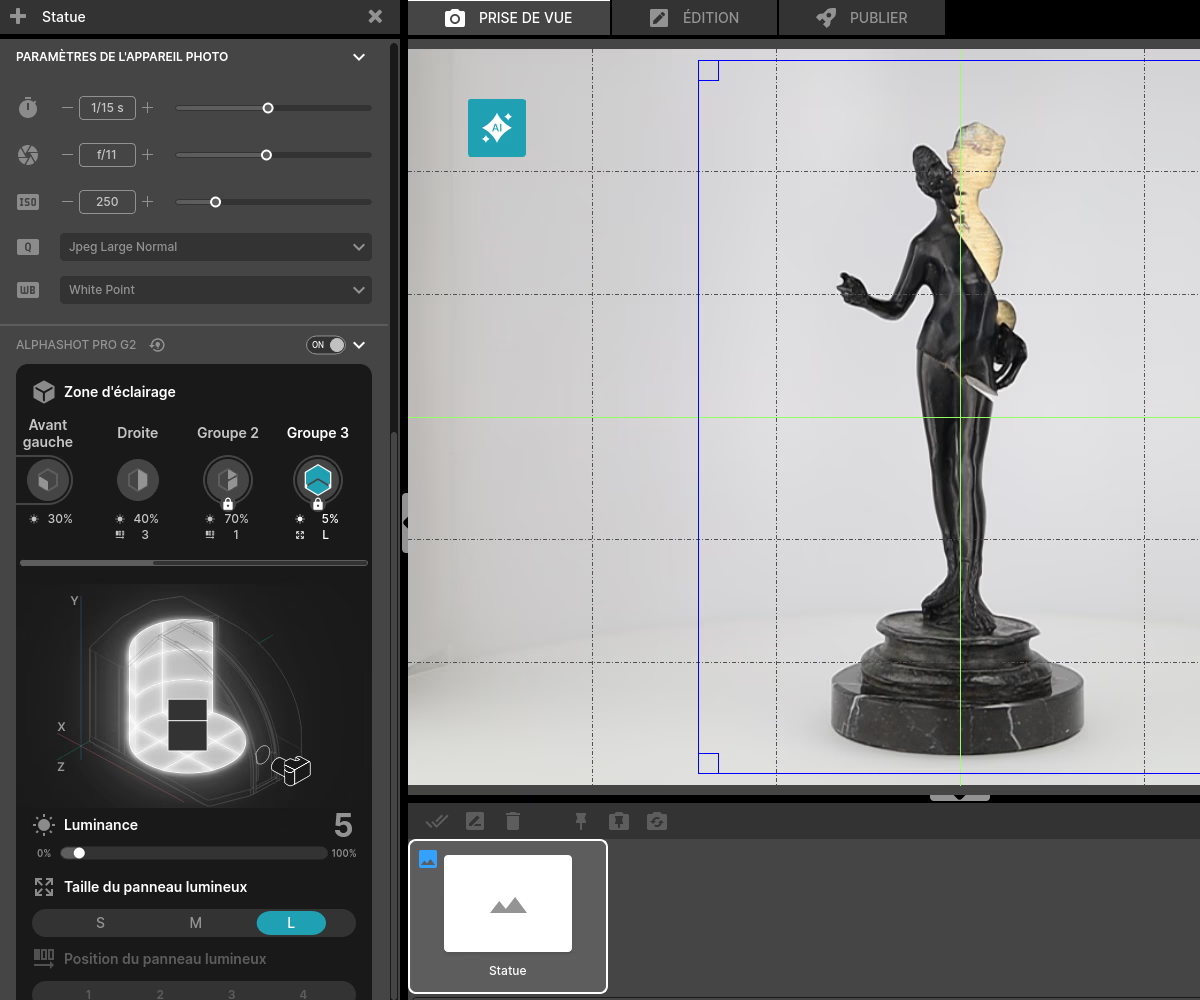
For optimal image quality, some adjustments are necessary: 📷
- Opening : Between f/14 and f/16 to maximize depth of field.
- ISO : In the vicinity of 600 to limit digital noise.
- Shutter speed : 1/80 minimum to avoid motion blur. (If you're shooting in 30 FPS, stick to at least 1/60 for fluidity that complies with the “double” rule).
If you want an almost white (or even pure) background, increase the intensity of the back panels from the Orbitvu Station software.
✨ Tip : Save your settings in a Template as soon as you find the ideal combination (camera+lights). You can reuse it for other products. 📂
Perform a first test and start recording
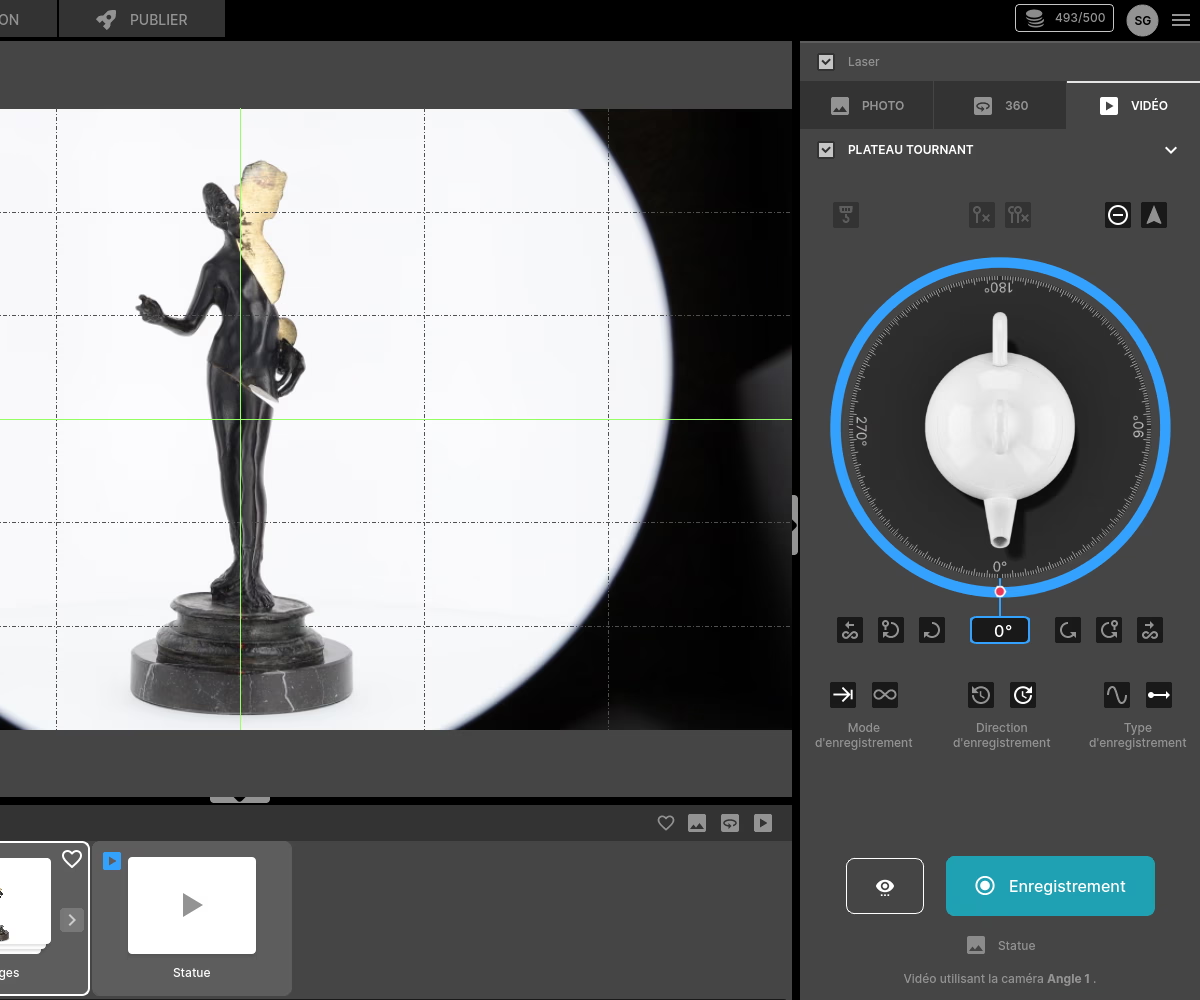
Take a photo to check exposure, sharpness, and alignment. You can also rotate the tray 360° to check that the centering is done correctly. 🔄
Choose the rotation speed and click “Record” to start shooting video. 🎬
Retouch the image: The statue
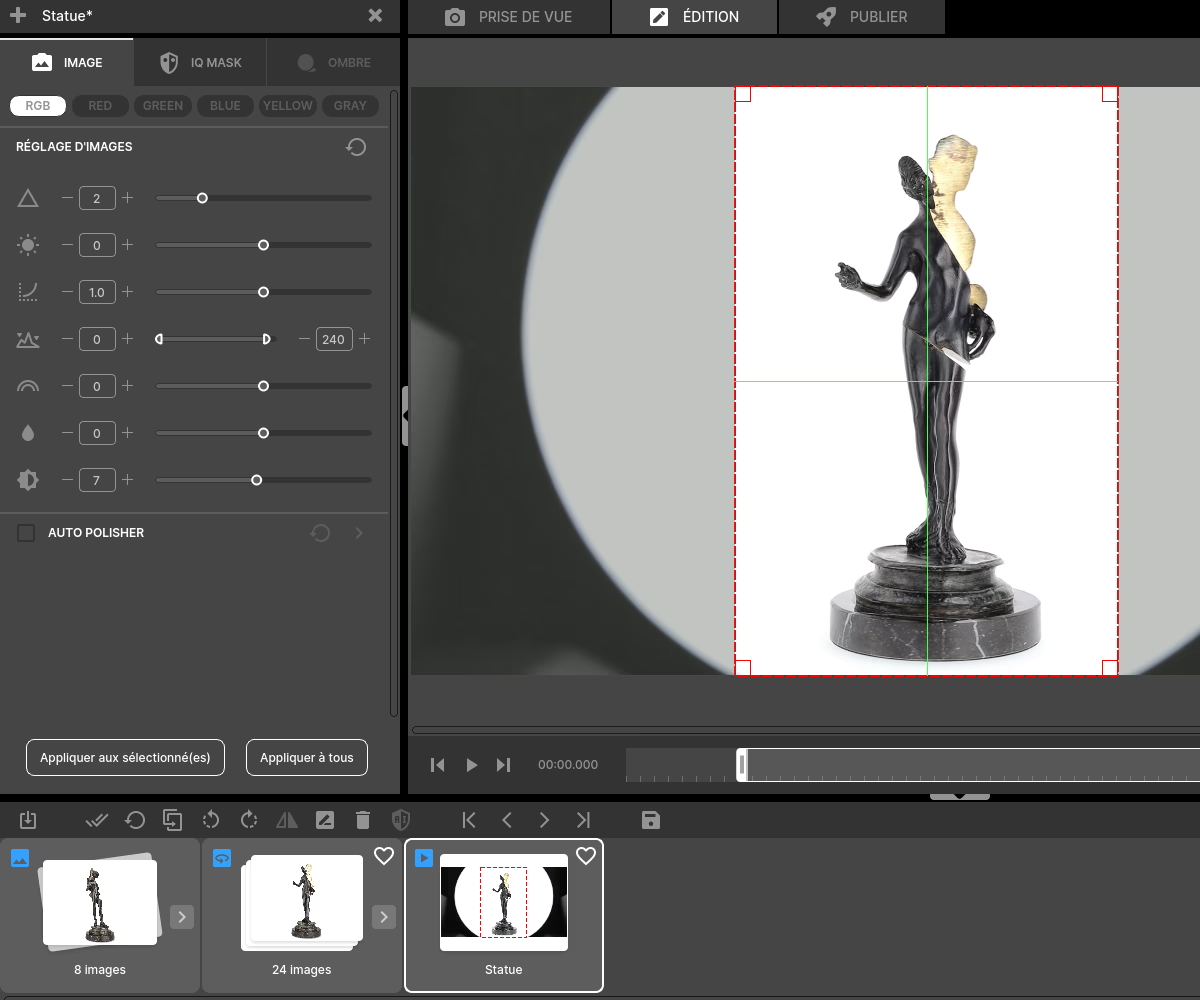
Once the registration is complete, go on Edit mode to fine-tune image settings such as sharpness, the luminance, the tint... 🎨
Use The Auto Polisher to eliminate the small imperfections of your object. 🧼
Retouch the image: The background
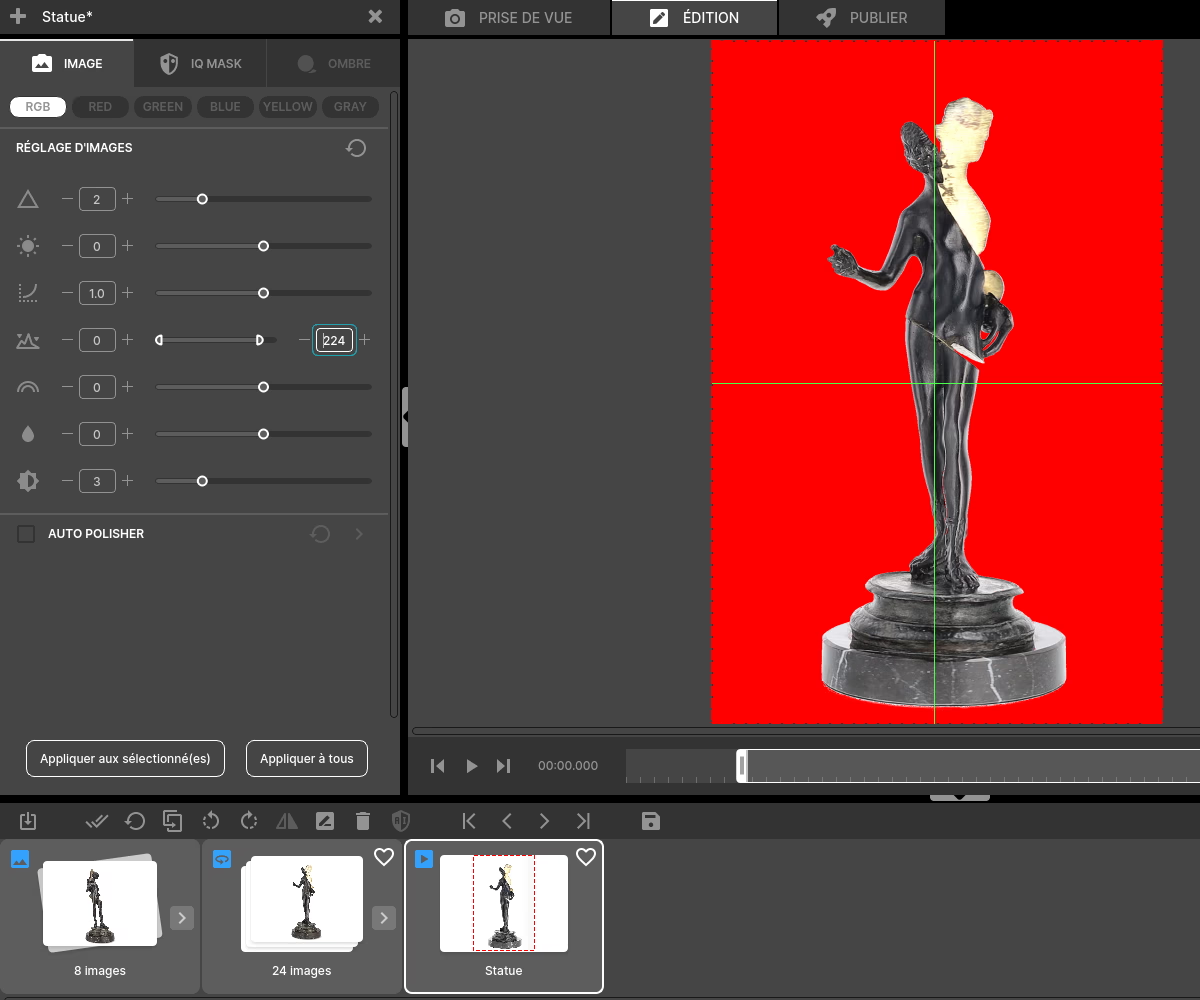
Click on the tool ”Histogram“in the software then on the icon ”Water drop“ at the top right. This will allow you to highlight the bleached parts.
Go back to the image adjustment bar to adjust the level. Click little by little on the “-” button next to 250. Anything that is red will be bleached by the software. Be careful not to overdo it so as not to launder your object.
Export your video
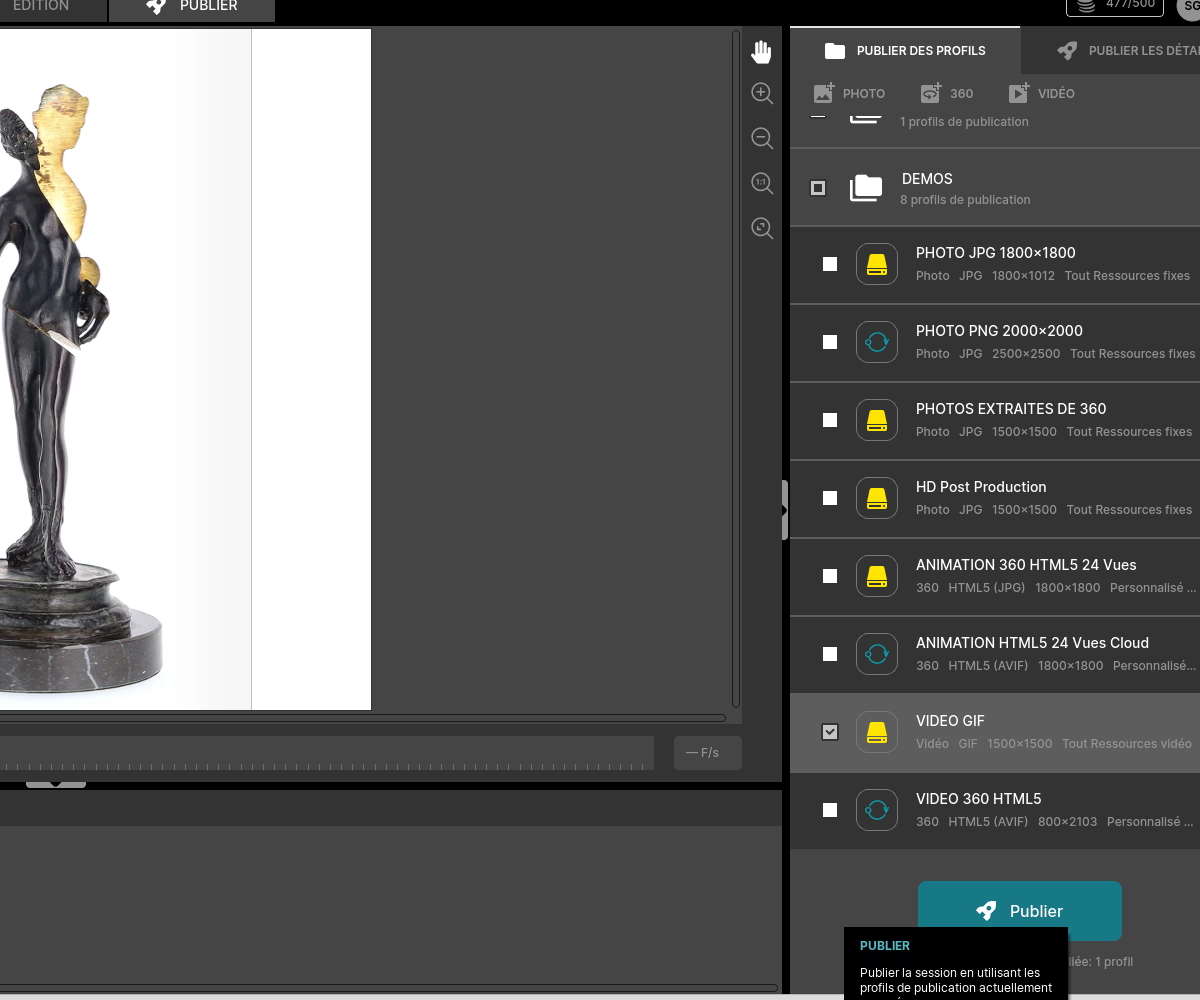
You can now export your video in MP4, MOV or even create a GIF. You also have the option to turn your video into 360° animation. 📤
To do so, create a new 360° publication profile and choose “videos” in the sources. You will then be able to get a HTML5 code or an integration link from the platform Orbitvu Sun. 💻
Frequently asked questions
Why does a 360 video attract more attention on social networks than a 360° animation?
What is the impact of the choice of the speed of rotation of the platter on the final visual effect?
Can a watermark or a logo be added to the video to protect the visuals?
Is the Alphashot PRO G2 suitable for photography or video beginners?
What is the advantage of using an automated turntable rather than manual shooting?
Need personalized guidance?
Our PackshotCreator experts are available to help optimize your product photography workflow.
Contact us