
Create sharp 360° jewelry animations with Focus Stacking
💎 Create sharp 360° jewelry animations with Orbitvu. Automated focus stacking, professional rendering, perfect details.
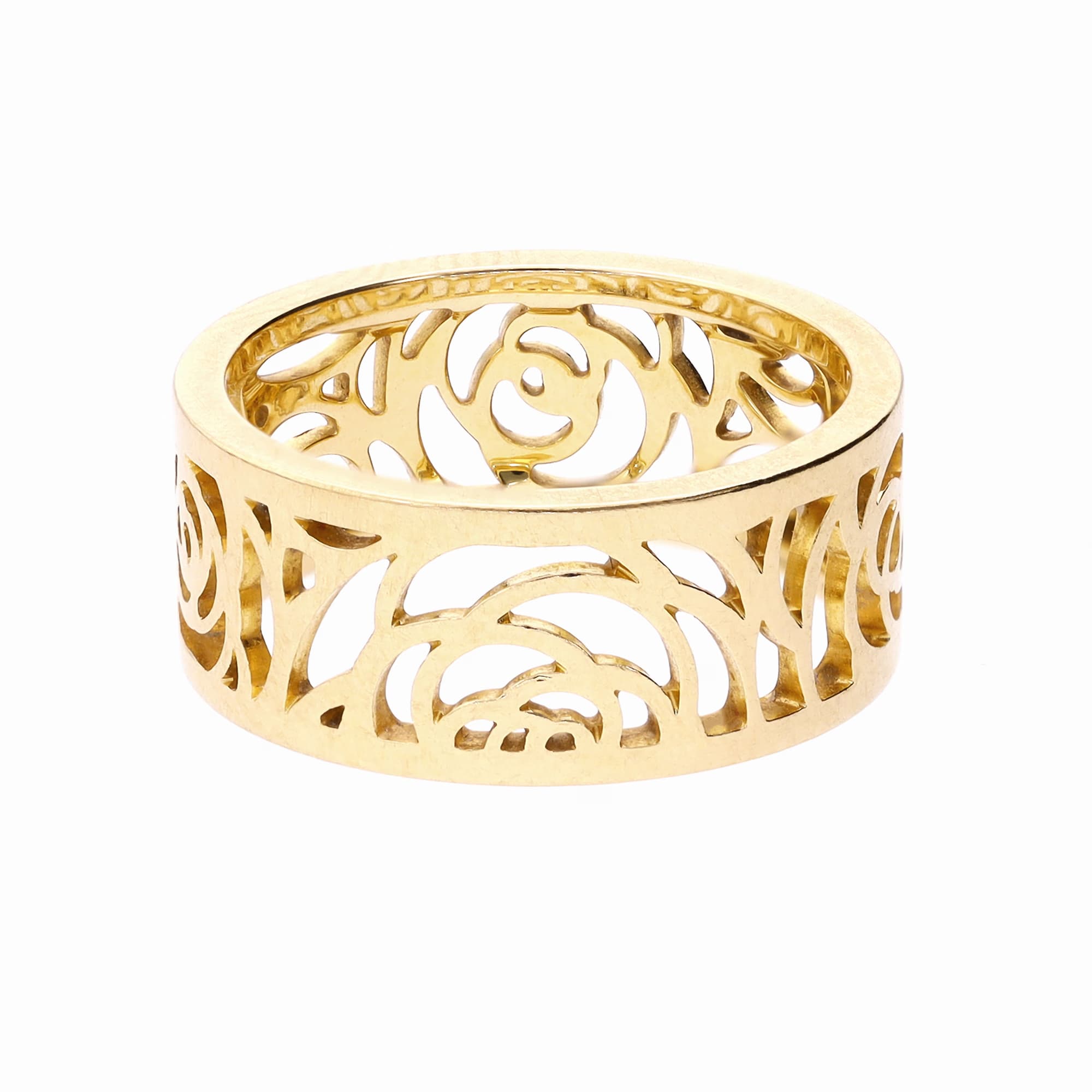
Suggest visuals of high quality that highlight the unique design Of your jewels is essential to succeed in e-commerce. By combining a 360° animation with the technique of Focus Stacking, you present your creations in all their angles, while revealing each detail With a exceptional sharpness.
Thanks to Orbitvu Station software, the process is fully automated, accessible even to novice users. You benefit from a optimized workflow, plus swift and more precise.
This guide shows you how to use the feature Superfocus (focus stacking) with a specialized photo studio In the jewelry photography, such asAlphashot Micro Pro V2.
🎯 The objective: to create a clear and detailed 360° animation of your jewelry, vertically (without visible support) or horizontally. This method highlights the sheen, the etchings And the precision of each room while reducing the time of retouching.
Setting up focus stacking in two points
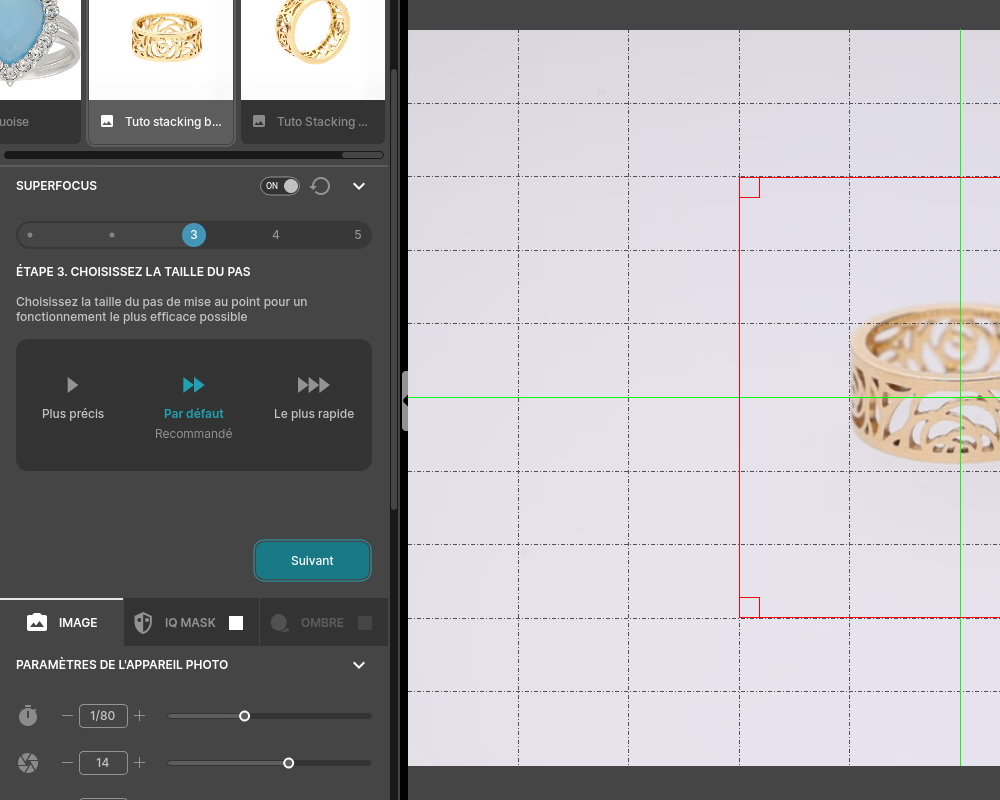
In this tutorial, we'll be using the Superfocus feature (focus stacking) in two points. This feature is included in the Orbitvu Station software. 🔍
Centering the camera and adjusting the light
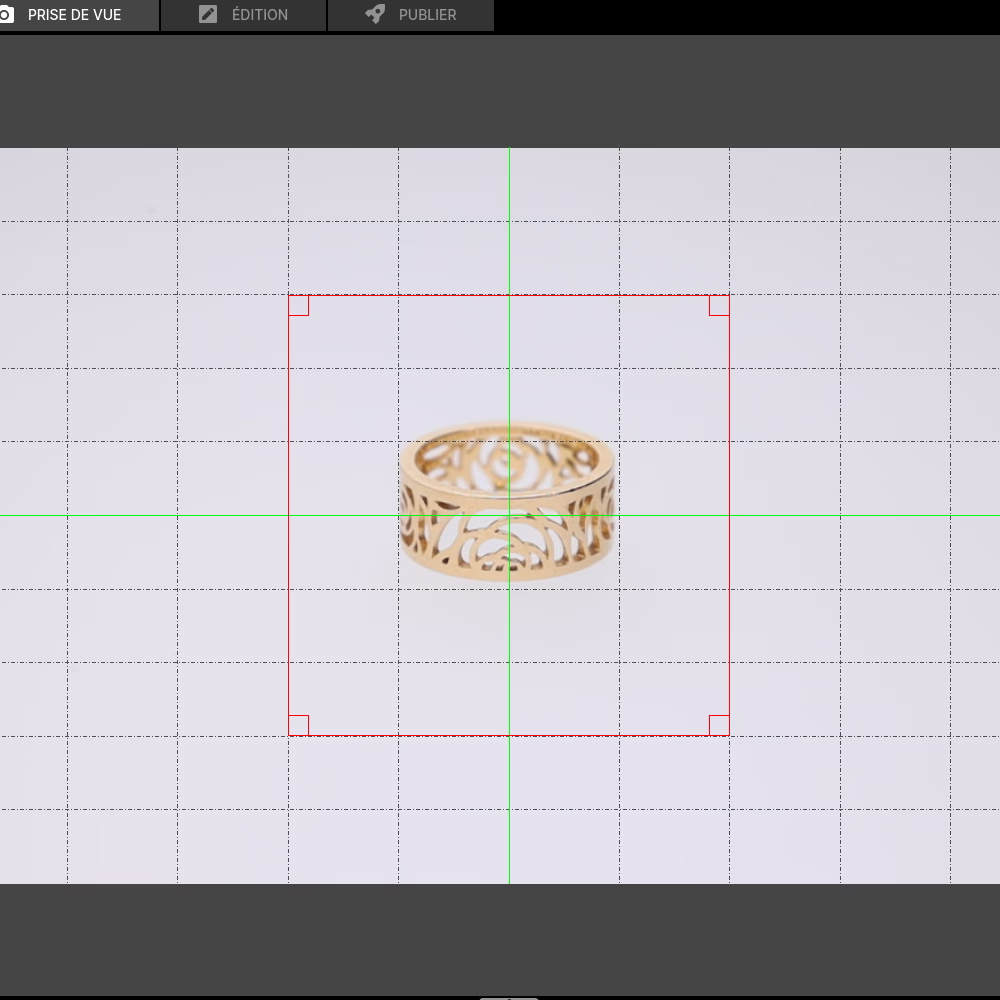
📷 Make sure the camera is centered in relation to the center of the studio. You can use the central point of the plateau rotating as a reference.
🔍 Also, be sure to choose a photo lens suitable for macro photography.
Finally, choose a default light template or personalized yours to highlight your jewelry.
Position the ring in the photo studio
🚨Before you start shooting, it is essential to clean your ring well in order to avoid visible fingerprints.
📍 Position your ring correctly on the center point of the photo studio, using a fixing kit (transparent double-sided adhesive) for an optimal result. ✨
Choosing the best camera and light settings
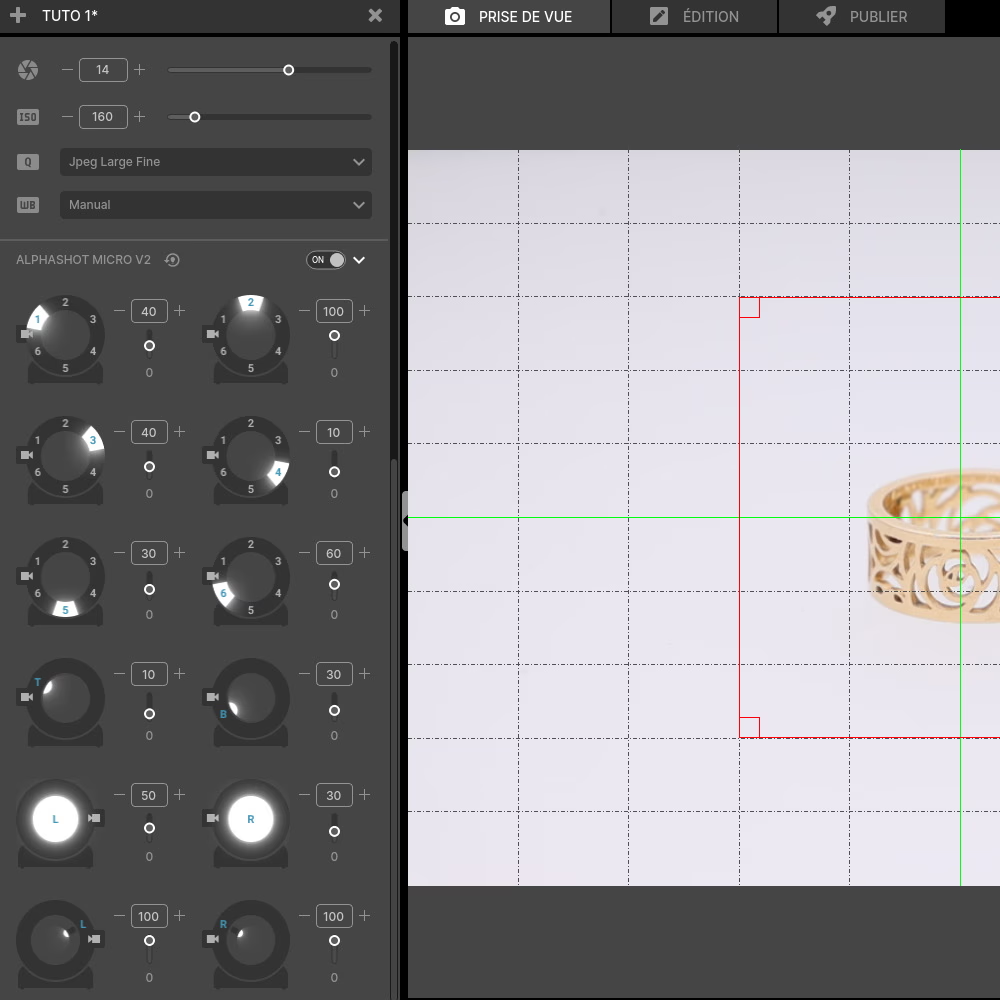
📷 Aperture and ISO: Choose 11 for the aperture value and 1/80th for the speed. You can then choose an ISO value between 100 and 400 for better brightness.
💡Brightness: Then adjust the intensity of each light source from 1 to 100% until you get the best light for your ring, or choose A template default shooting mode.
Do not hesitate to use the accessory “light spot” for an optimal result.
For more precision, discover our A guide to camera settings for jewelry photography.
Setting up the 360° animation
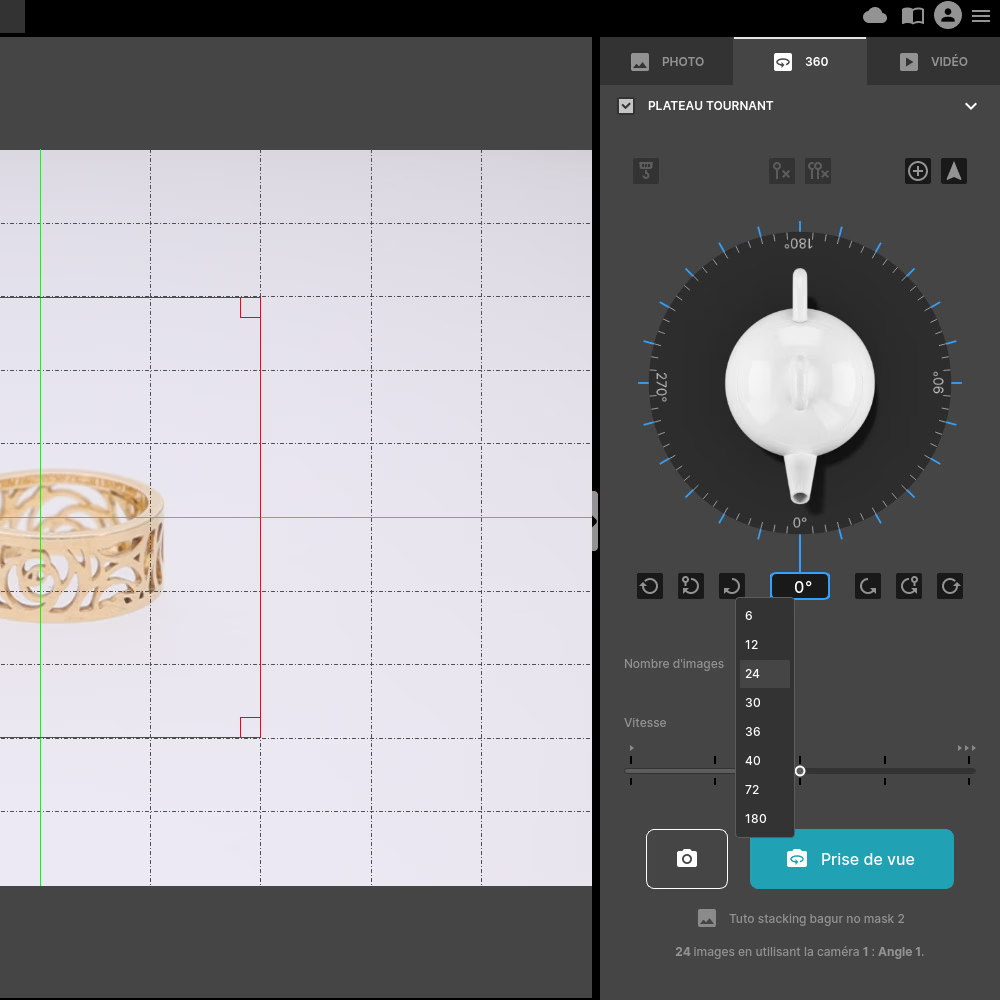
🔄 In the “turntable” tab, select the number of photos you want for your 360° animation. The more photos you increase per animation, the longer the process will take, but the smoother the animation will be.
We recommend that you select 36 photos maximum per animation.
✨consultancy : you can remember all these settings (camera settings, lighting, animation) by clicking on “save” in order to reuse them during future photo sessions. ☁
The Superfocus Process
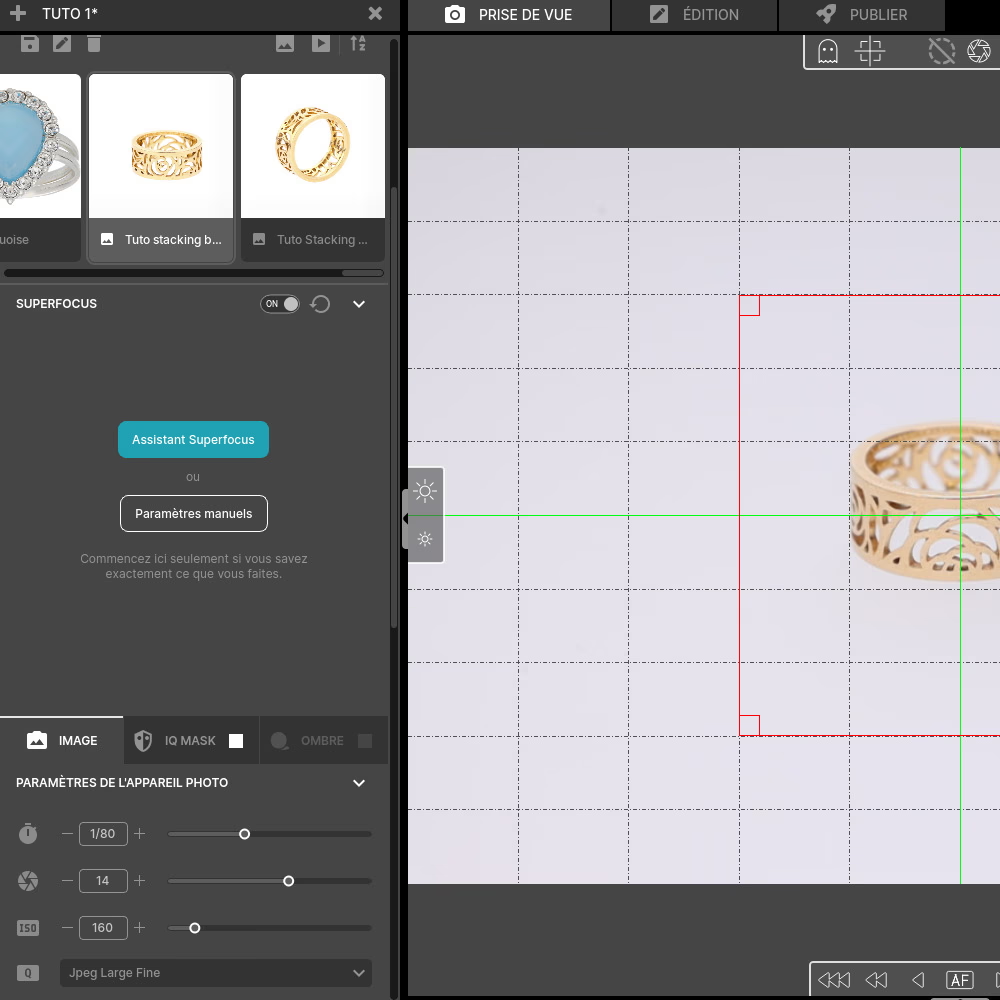
💻 Choose the assistant Superfocus from the Orbitvu Station software interface. This assistant will automatically guide the various stages of stacking by suggesting the ideal settings for focus stacking.
🔍1st stacking stage : Start the sequence by placing the first focus on the front area of the ring, i.e. the foreground. This makes it possible to capture all the precise details of the areas closest to the lens.
🔍2nd stacking stage : Focus on the back area with zoom. Gradually move it to the back of the ring. Use the zoom to capture fine details like carvings or stones.💎
Adjust the Step size depending on the complexity of the jewel. For a ring decorated with stones or carvings, opt for small intervals in order to ensure perfect sharpness throughout the product.
✨consultancy : The number of photos for a ring is generally between 4 and 12.
Creation of the 360° animation
🎬 Click on “Capture All”, the Orbitvu Station software automatically creates the 360° animation with Superfocus (focus stacking).
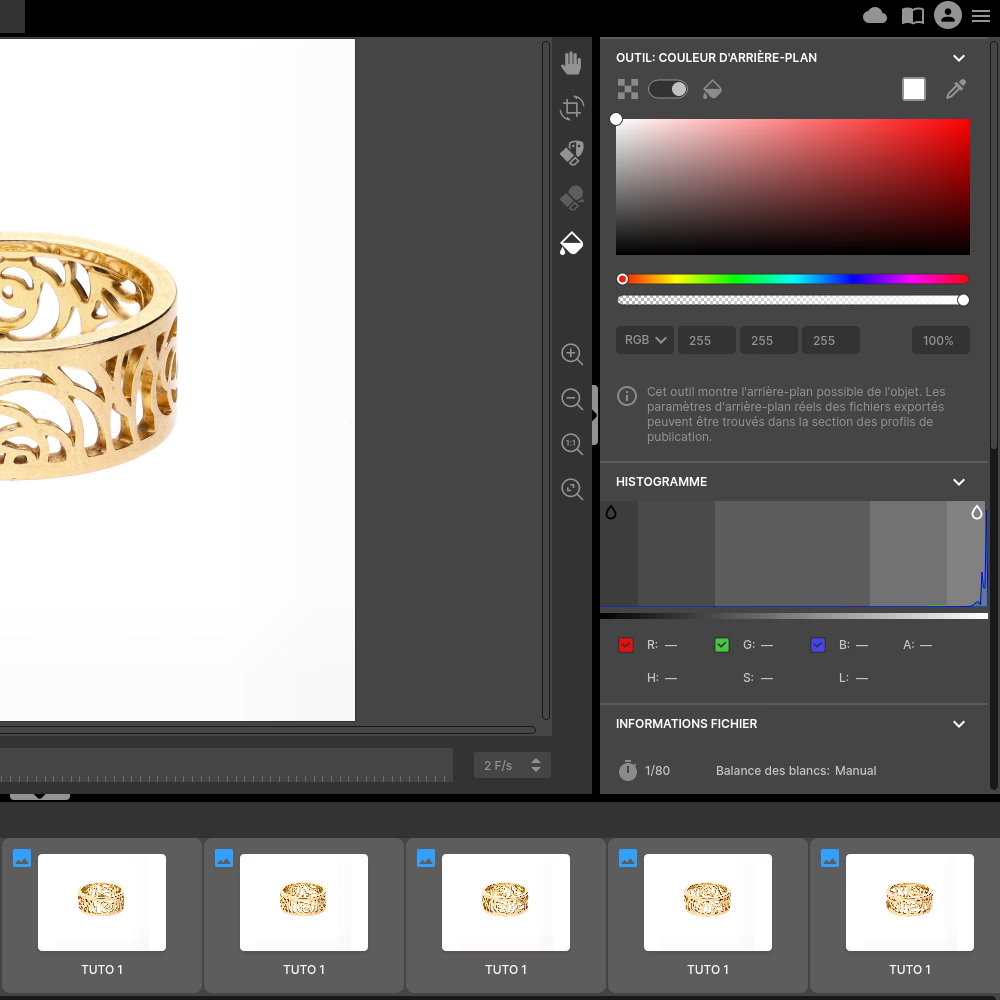
🎨 When shooting is finished, you can move on to editing and retouching the animation in Edit mode.
Export animation
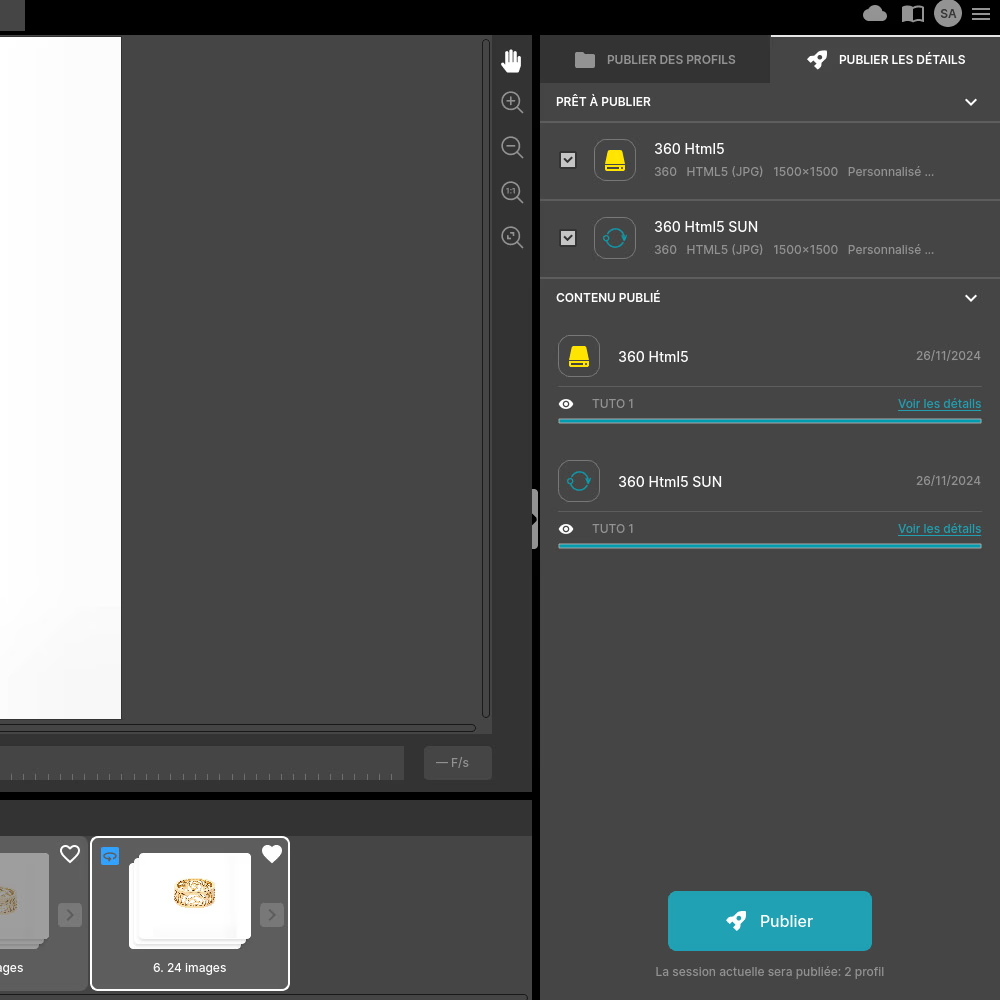
🎥 Once the edits are complete, select the export format (s) according to the intended use, for example HTML5, MP4, MOV, or GIF.
📷 If you want to get the photos separately, you can add the formats JPEG, TIFF, or PNG.
📂 You can also create a template for these settings in order to Save time during your future exports.
💻 Now you can export your animations to the Orbitvu Sun cloud, in order to get a link or integration code for your website.
Frequently asked questions
Is it possible to share animations on several platforms at the same time?
Is it possible to collaborate with several team members on exports and integrations?
Why is the Alphashot Micro ideal for creating 360° animations of small products?
Do you need photography skills to use the Alphashot Micro?
What are the financial benefits of using the Alphashot Micro?
Need personalized guidance?
Our PackshotCreator experts are available to help optimize your product photography workflow.
Contact us